Dynamic Launch
Launch and recover an environment with the Facets Launch Wizard: choose infrastructure, enable resources, configure them, set secrets, and launch.
Before an environment can serve traffic or run workloads, it must be launched, the process of provisioning cloud infrastructure defined by your project blueprint. Launching creates the actual compute, networking, storage, and services in your target cloud account.
The Launch Wizard is a guided, step-by-step experience tailored to your blueprint, and it can be customised per project. See how any launch wizard renders.
Launch an environment
Using prompt
Create and launch an environment called dev in myproject.or
Using command
raptor create environment dev -p myproject --launch -w

# An environment that already exists but is stopped
raptor launch environment dev -p myproject -w
Launch only bootstraps the environment's infrastructure. It disables every resource, runs the LAUNCH deployment, then re-enables them, so nothing of yours is deployed yet. Deploy after it finishes:
raptor create release -p myproject -e dev -w-w waits and tails the logs; without it the launch is triggered and the command returns.
New to the CLI? Install it first.
Open the Launch Wizard from any of three places:
- Project Overview → Environment Actions → select an environment → Launch
- Environment Overview → Launch, in the header action buttons
- The environment's Releases page → Launch, in the header action buttons
The Launch button appears when the environment is in Stopped or Launch Failed state.
The launch wizard, step by step
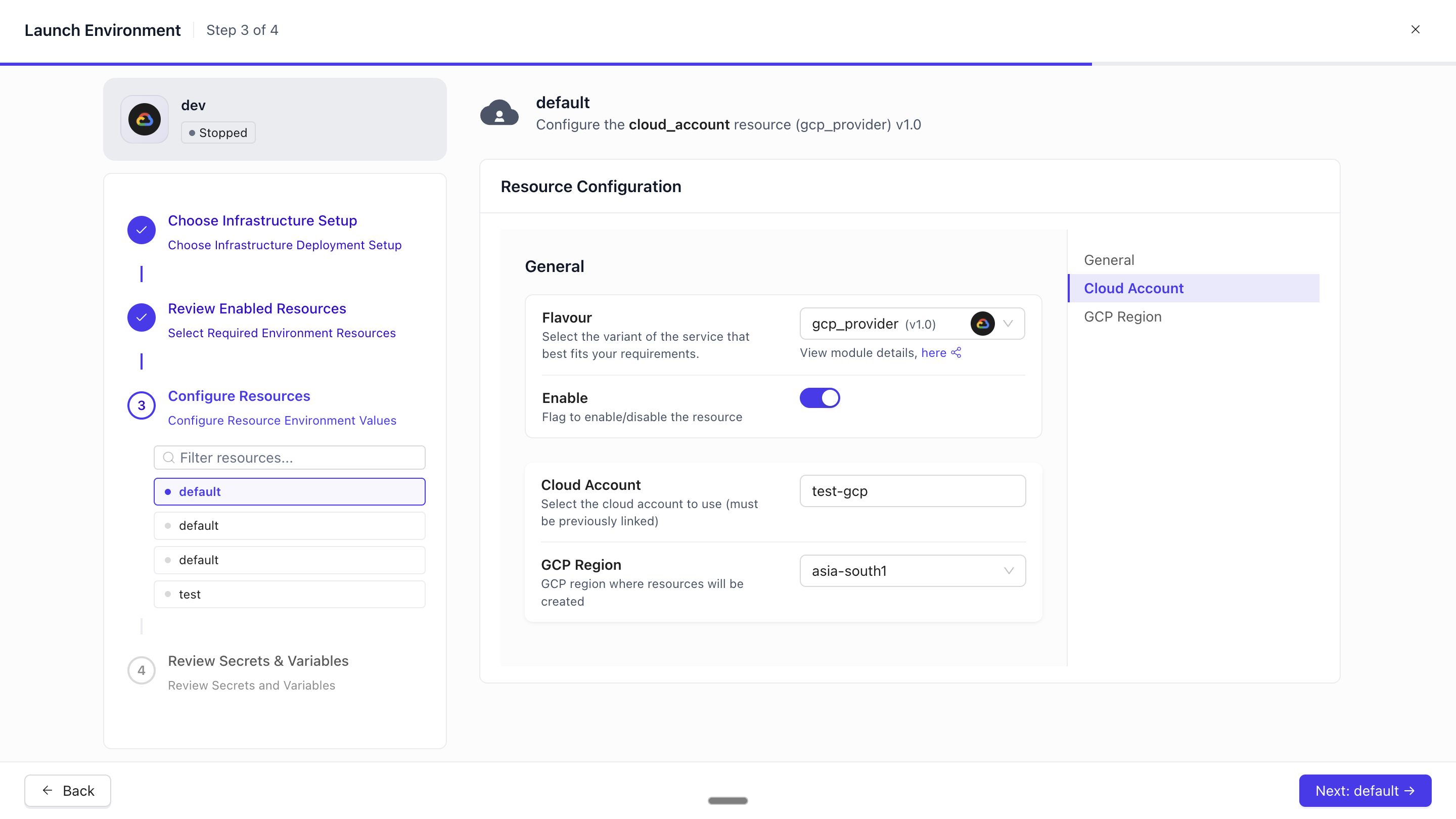
The wizard adapts to your blueprint: the number of steps and the resources you configure depend on what is enabled in the environment. Move between steps with Back and Next, or by clicking a step in the sidebar; you can only move forward once the current step is valid.
Step 1: Choose your infrastructure. Decide how and where the environment runs, the foundation for every later step.
| Option | Description |
|---|---|
| Create new infrastructure | Facets provisions fresh cloud resources (VPC, clusters, nodes) for this environment |
| Use existing infrastructure | Run this environment inside infrastructure that already exists in Facets, such as a shared VPC or an existing Kubernetes cluster |
Step 2: Review enabled resources. Every resource in your blueprint is shown; only the ones you enable are provisioned in this environment.
Step 3: Configure resources. Facets works out which enabled resources need environment-specific configuration and presents a form for each. Each appears as a sub-step in the sidebar, filled in one at a time; a resource with no required configuration may not appear.
Step 4: Review secrets and variables. Review and set values for the environment-specific variables and secrets your project defines.
Final step: launch. Once every step is complete, the Launch Environment button activates at the bottom. On click, Facets configures your cloud infrastructure, saves the environment settings, and triggers the launch release (a Terraform deployment of all enabled resources). The wizard closes, you return to the Environment Overview, and the status changes to Launching.
Launch runs on the platform, so you can navigate away or close the browser. Follow it in real time on the Releases tab; it usually takes several minutes depending on the resources.
If the launch fails, the status changes to Launch Failed and the Launch button reappears. The infrastructure steps show as read-only, since your cloud configuration was already partially applied. To recover: read the error log on the Releases tab, fix the root cause (a resource configuration, a variable value, or a cloud permission), then click Launch again, the wizard resumes where it left off without re-entering cloud details. To start over completely, Destroy the partial infrastructure first, then re-launch.
Destroying an environment
Destroying an environment tears down all cloud infrastructure associated with it. This is a permanent, irreversible action: all provisioned resources (compute, storage, networking) will be deleted.
When to destroy: the environment is no longer needed and you want to stop incurring cloud costs, or a launch failed and you want to start fresh without partial infrastructure.
How to destroy: the Destroy action appears in the Environment Overview header only when the environment is in Launch Failed or Destroy Failed state.
Note: Destroy is also available from the CLI. raptor destroy environment NAME -p PROJECT --yes tears down all infrastructure, and raptor delete environment NAME -p PROJECT --yes then removes the environment record. Destroy is state-gated on the platform: it is accepted for an environment in Running, Scale Down, Scale Down Failed, Scale Up Failed, Launch Failed or Destroy Failed state, and rejected with Cannot Destroy a cluster in state: <state> for Destroying, Stopped, Launching and Unknown. Destroying a base environment additionally requires every dependent environment to already be Stopped, otherwise the request is rejected with Please destroy all dependent environments before destroying the base environment!. A Running environment is therefore destroyable directly. Scale Down is a separate, non-destructive action that suspends compute while keeping infrastructure in place, and it is not a prerequisite for Destroy.
Launching & Destroying
How to launch and destroy Facets environments, covering the preferred dynamic launch wizard and the legacy static-launch flow kept for existing environments.
Static Launch (Legacy)
The legacy Facets launch flow, covering cloud and network setup, Kubernetes configuration, resource selection, and how to destroy or delete an environment.