Artifact History & Rollback
View the artifact history for a service in the Facets Control Plane and roll back to a previously registered image from the Resource Center.
How to View the Artifact History?
The process of viewing the artifact history and performing a rollback in the Facets Control Plane is as follows:
- Open the Projects tab and select the required project.
- Select the Environments tab and select the required environment.
- Select the Resource Center tab and select the service for which you want to view the history.
- In the Resource Details Overview page, the Artifact section will display the currently registered image if any.
- Click on History in the Artifact widget to view a list of previously registered artifacts.
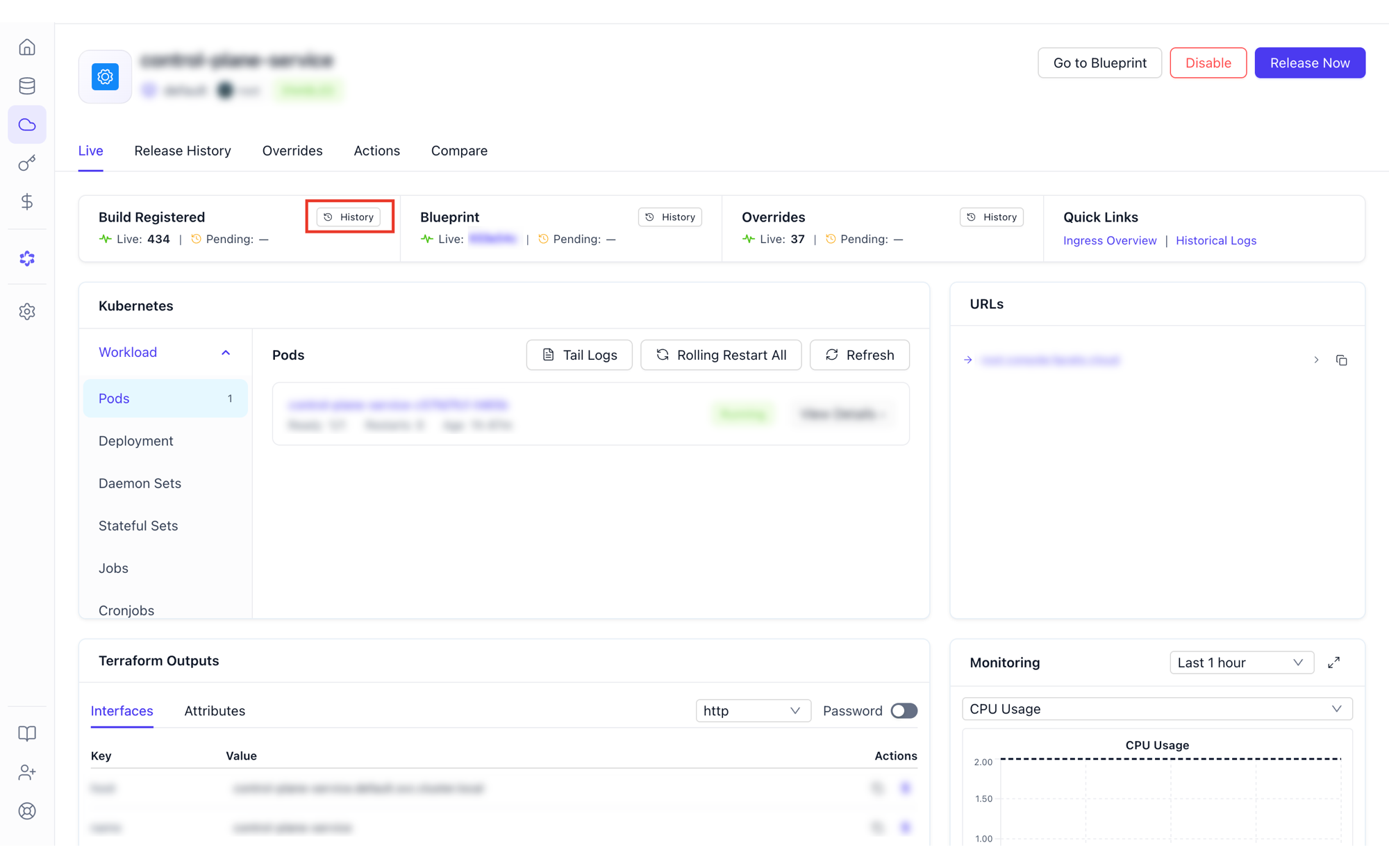
The same list is available from the command line:
raptor get builds ARTIFACT_NAME -p PROJECTEach build is one registered image or zip, with the registration type and value that decide where it deploys. -o json adds the build ids.
How to perform a Rollback?
- On the artifact history page, select the rollback icon on a previously registered image.
- In the popup that appears, click Confirm to verify the rollback.
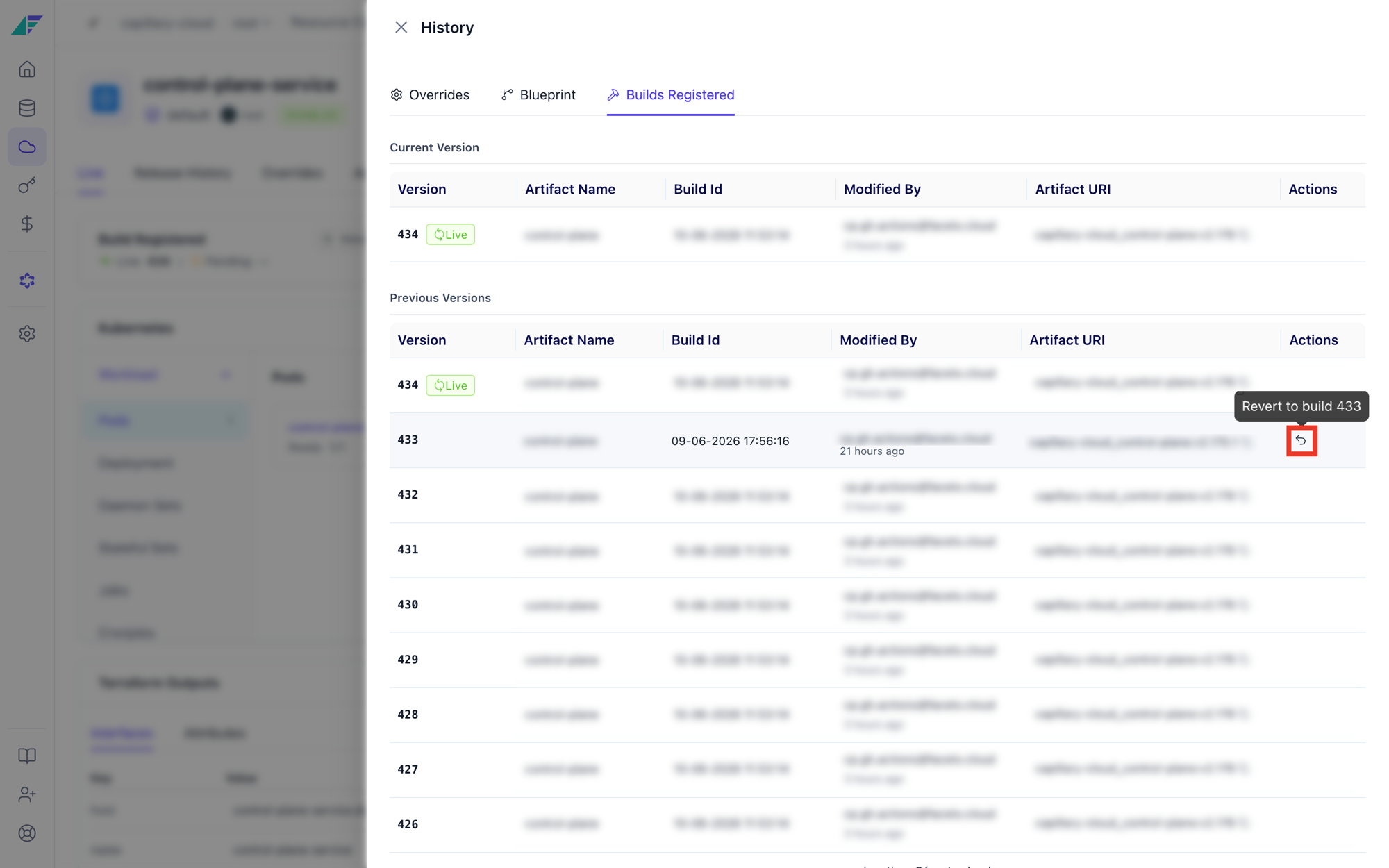
If the rollback is successful, the dialog window closes, a success toaster is displayed, and both the current image and history list are refreshed.
There is no rollback command. To reach the same state from the command line, register the earlier image again for that environment:
raptor set artifact-uri -p PROJECT -e ENVIRONMENT ARTIFACT_NAME --uri PREVIOUS_IMAGE_URITake the URI from raptor get builds. The environment picks the image up on its next release, where the console's rollback acts immediately.
Deployment Has Non-Ready Pods
Identify why a deployment or statefulset has non-ready pods by locating the pod name and using kubectl describe to inspect the events.
Expanding a PVC
Check disk utilization and resize a Kubernetes PersistentVolumeClaim, including Azure Managed Disk options with and without downtime.