Integrating Cloud Accounts
Step-by-step guide to connecting AWS, Azure, GCP, and Kubernetes accounts to Facets by running a generated command in your cloud provider's shell.
Connect a cloud account so Facets can provision and launch environments on it. You can integrate Amazon Web Services, Microsoft Azure, Google Cloud Platform, and standalone Kubernetes clusters.
The raptor commands on this page are the Praxis CLI. See Install Praxis CLI to set it up.
How to add a cloud account in Facets
Using prompt
Link my AWS account to Facets and call it prod-aws.or
Using command
raptor create account --provider aws --name prod-aws -w--provider takes aws, gcp, azure or kubernetes. The command prints the same script the console modal shows, which you then run in a terminal already authenticated against that cloud. -w waits and reports when the link completes instead of exiting straight after printing.
# What is linked already, and of which kind
raptor get accounts --type CLOUD
raptor get account --name prod-aws -o json
New to the CLI? Install it first.
Go to Settings > Accounts, the page that lists every account and where you add new Cloud and VCS accounts. The console flow differs slightly per provider.
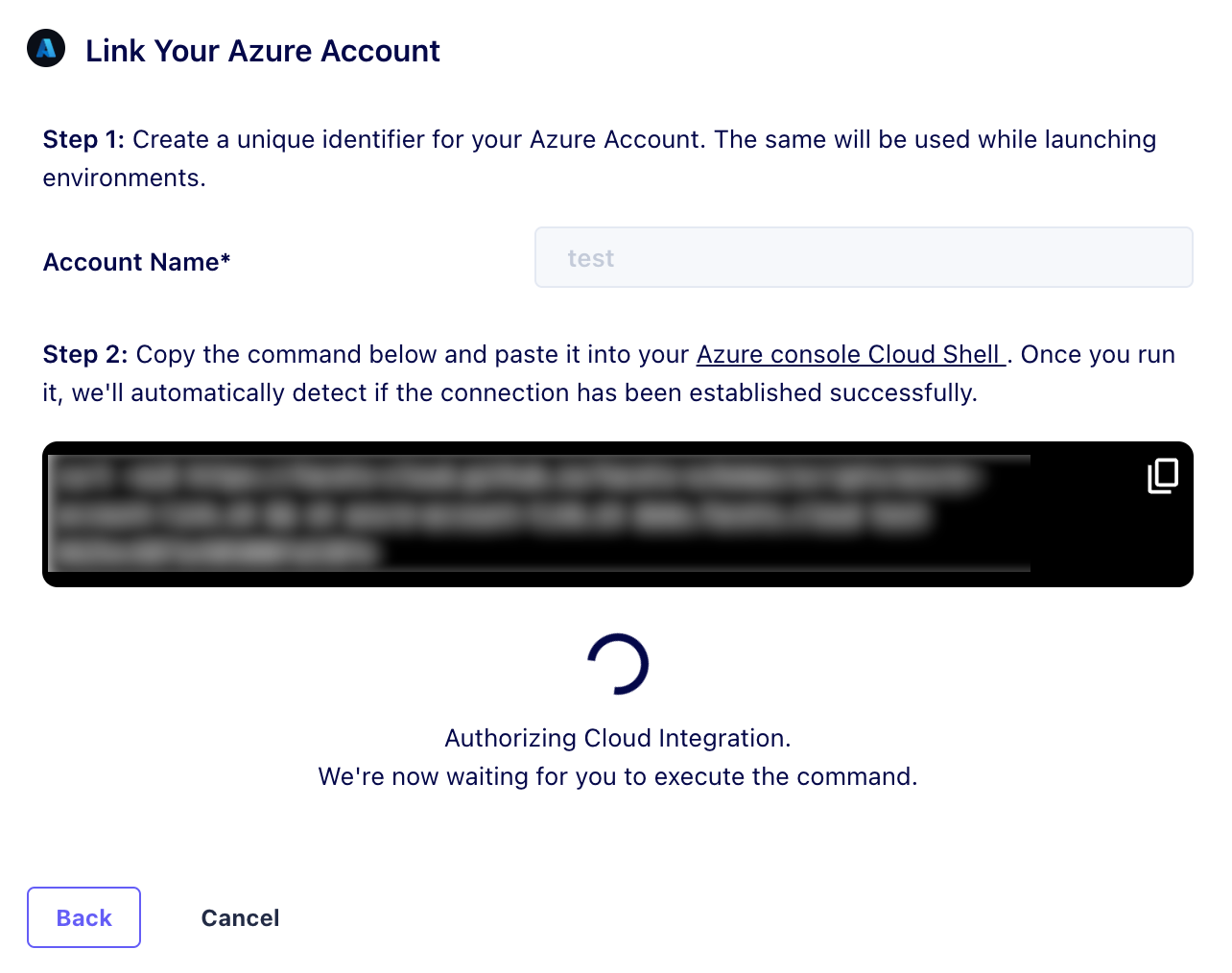
Microsoft Azure
- On the Accounts page, click Azure.
- Enter an Account Name and click Next.
- Copy the command generated in the modal.
- Open the Microsoft Azure Portal and click the Cloud Shell icon on the top bar.
- In the Cloud Shell terminal, run the command.
- Facets detects the connection automatically once it succeeds.
Google Cloud Platform (GCP)
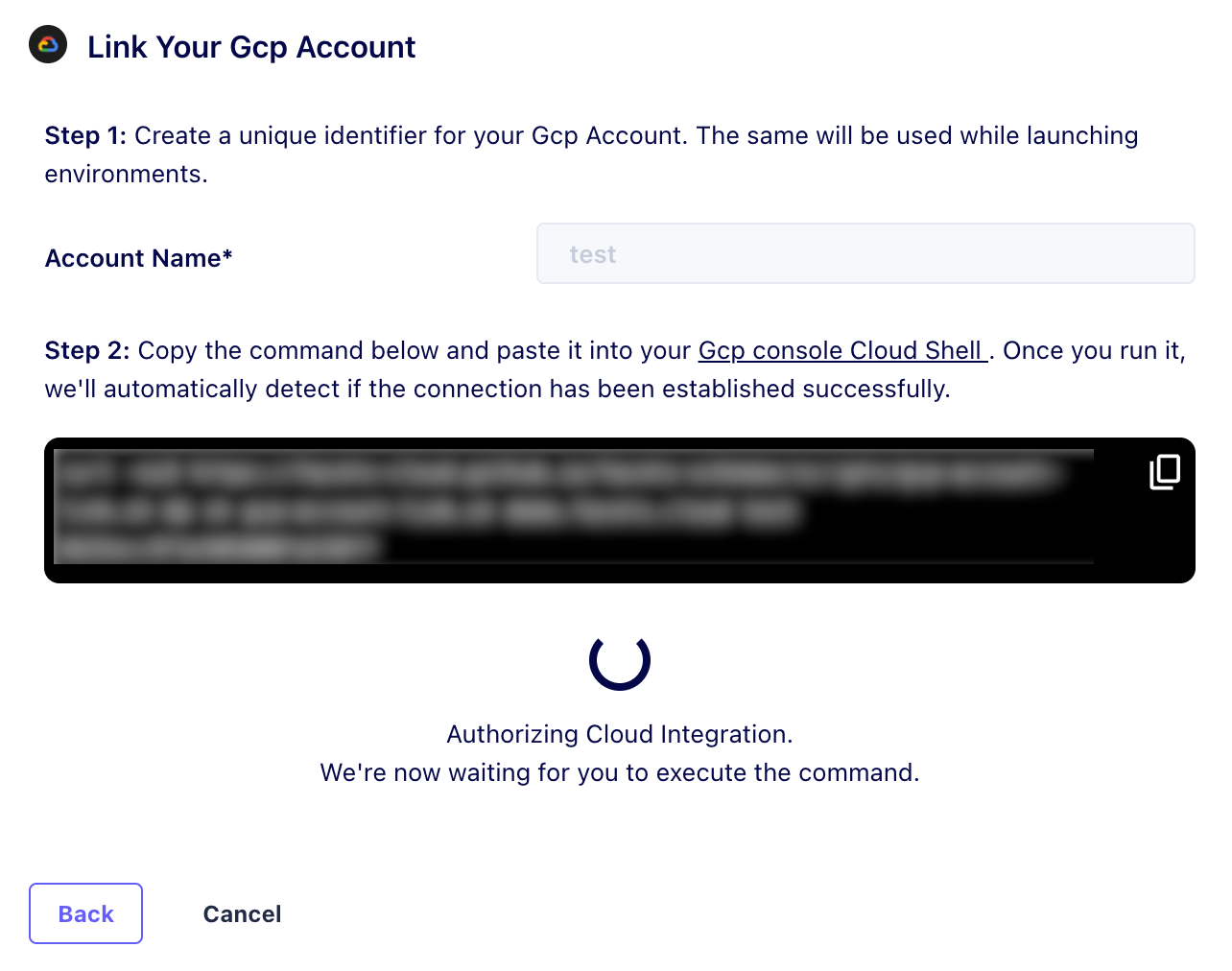
- On the Accounts page, click GCP.
- Enter an Account Name and click Next.
- Copy the command generated in the modal.
- Open the GCP Cloud Console and click the Cloud Shell icon on the top bar.
- In the Cloud Shell terminal, run the command.
- Facets detects the connection automatically once it succeeds.
Amazon Web Services (AWS)
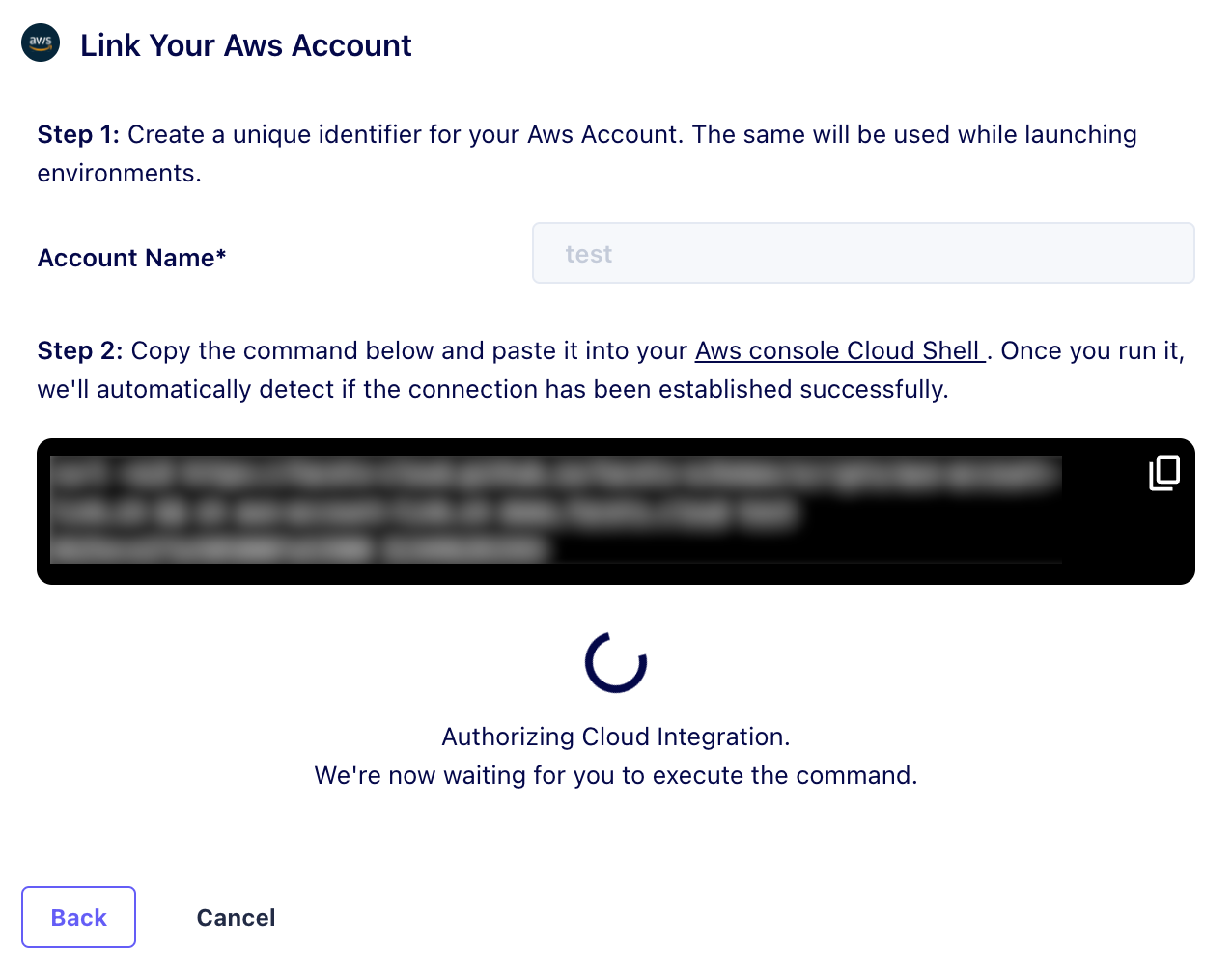
- On the Accounts page, click AWS.
- Enter an Account Name and click Next.
- Copy the command generated in the modal.
- Open the AWS Cloud Console and click the CloudShell icon on the top bar.
- In the CloudShell terminal, run the command.
- Facets detects the connection automatically once it succeeds.
Kubernetes
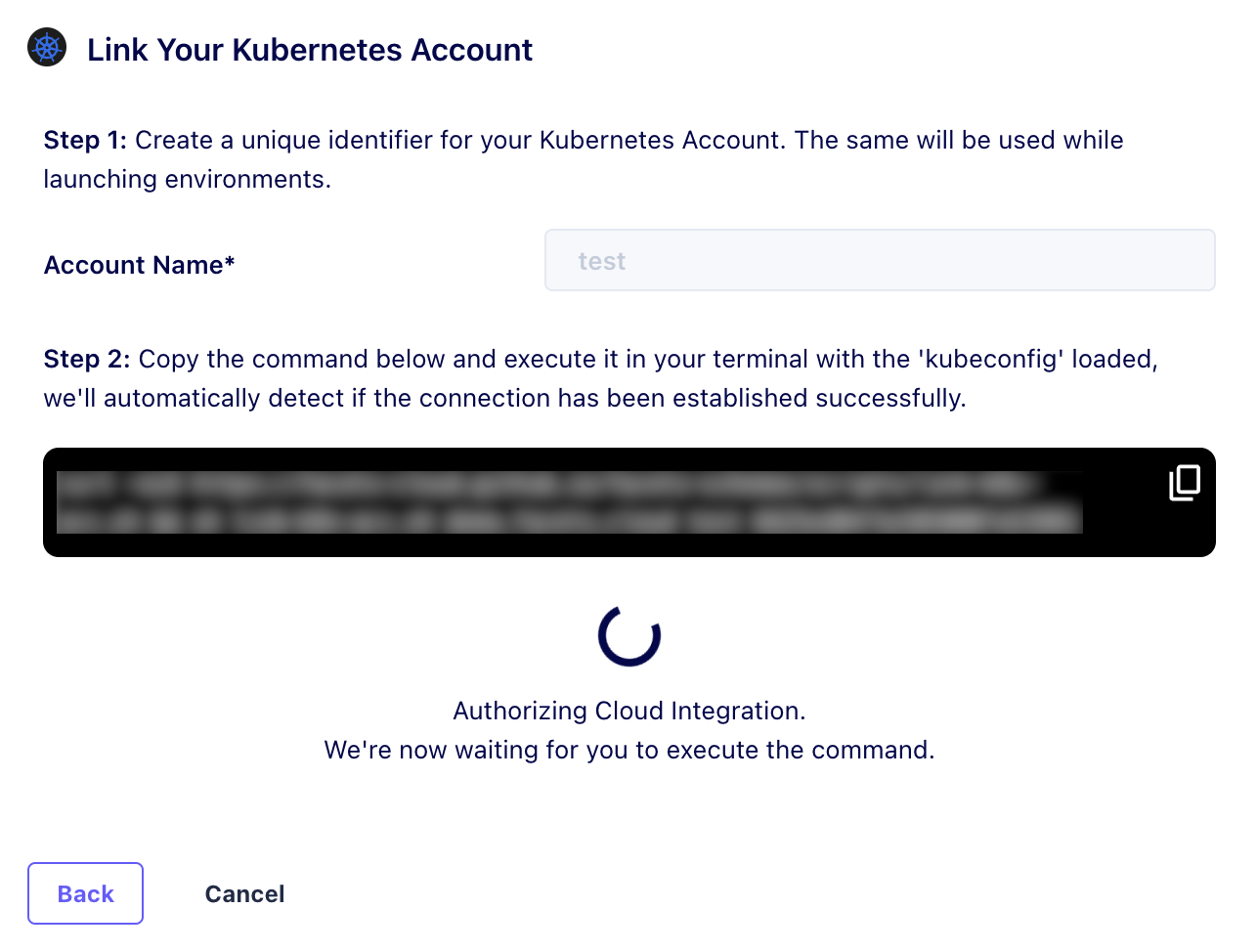
- On the Accounts page, click Kubernetes.
- Enter an Account Name and click Next.
- Copy the command generated in the modal.
- Load your kubeconfig in a terminal and run the command.
- Facets detects the connection automatically once it succeeds.
Accounts
Connect Git and cloud accounts: the gateway to managing repositories and provisioning infrastructure on AWS, GCP, and Azure.
Integrating Git Accounts
Link GitHub, GitLab, or Bitbucket accounts to Facets for GitOps workflows, with step-by-step instructions and interactive walkthroughs for each provider.